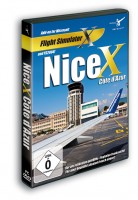
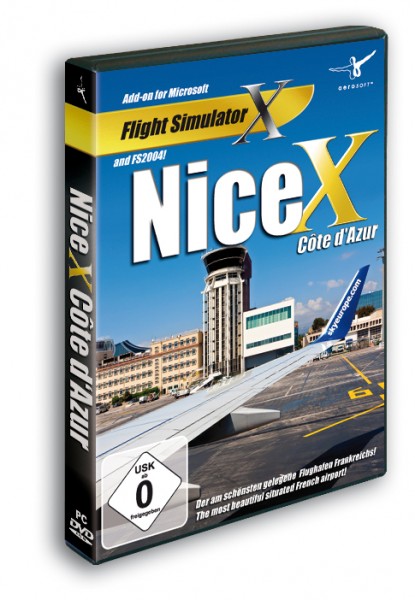
Nice Côte d'Azur X (FSX only)

|
Nice Côte d'Azur Airport (or in French: Aéroport Nice Côte d'Azur) is the third most important airport in France and is often also seen as the only airport of Monaco. There is a great helicopter service to that little Principality. It has two parallel runways that can be used at the same time and two heliports. Save 20% now !!
The international airport of Nice is located at the south coast of France (Côte d‘Azur). The airport is the third businesst airport of France. Located on the Mediterranean coast the weather, mostly turbulence can make it a bit daunting at times, something that is not made better by rather complex noise abatement procedures. All in all a airport that is a bit special and that’s always nice. While approaching or departing the airport pilots get an impressive view over the mountain landscape and the city of Nice. Features: - Completely new designed scenery for FSX
- Highly detailed virtual replica of the airport and its surroundings incl. regional objects
- Photo realistic ground textures (1m/pxl)
- All airport buildings and institutions
- Realistic navigation aids (ILS, VOR/DME, NDB, ATIS)
- Numerous taxi- and runway signs
- High speed taxiways allowing planes to leave the runway at higher speeds.
- Excellent night effects
- Realistic runway and taxiway lighting
- Numerous scenery effects
- Fully AI compatible
- Fully supported by AES (from version 2.04)
- Excellente frame rates
- A perfect companion for our Monaco X scenery
- Extensive manual with information about the airport
Additional specifications: Download-Version (FSX): Version 1.01, Manual and Charts as a .pdf-File (German, English)
System requirements: Microsoft Flight Simulator X (Acceleration or SP2) Windows XP(SP2), Windows Vista Pentium 2 GHz (Duo2Core Intel or equivalent advised) 1 GB RAM (2 GB recommended) 256 MB graphic card (512 MB recommended) Download-Size: 200 MB Installation-Size: 390 MB
How to purchase and install Download-Versions?: - Buying is simple, just add it to your cart ( press the green buy button ) and do all the handling of payment (Credit Card and PayPal accepted) . Keep in mind that if you are located outside the EEC you do not pay VAT
- On the screen where you see that the payment has been done you will find a download link, download AND SAVE this file to a secure location
- While you are doing this, an email is being send to you with the serial code
- You can always find your code in the shop under Your Account - Your Order Details - Downloads
- During the installation you will be asked to enter your shop login name (email) and for this serial code
|